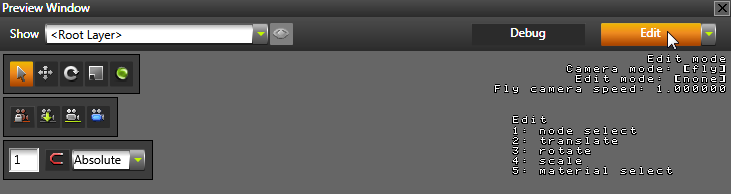
You can do some edits directly in the Preview.
To start editing in the Preview click Edit.
When in the Edit mode, you can use the tools in the tools panel to edit your project.
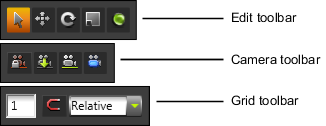
| Tool | Description | Shortcut key |
|---|---|---|

|
Select any object. | 1 |

|
Move the selected object. |
2 |

|
Rotate the selected object. | 3 |

|
Scale the selected object. | 4 |

|
Select the materials of objects. Useful when editing materials of a part of a larger mesh. |
5 |
When you enable the Edit in the Preview, you also enable the free camera. The free camera allows you to move around the scene starting from the point of the active camera.
| Tool | Description | Shortcut key |
|---|---|---|

|
Lock the free camera. Useful when editing the content with the edit tools |
N |

|
Save the current position of the free camera to the active camera in the scene. | M |

|
Save the current position of the free camera to the object you select in the Project. Useful when setting the position of objects. |
K |

|
Create a new camera form the current position of the free camera. | J |
Use these free camera controls to move around in the Preview.
| Control | Description |
|---|---|
| W | Move forward. Hold down Shift to double the speed. |
| S | Move backward. Hold down Shift to double the speed. |
| A | Move left. Hold down Shift to double the speed. |
| D | Move right. Hold down Shift to double the speed. |
| Q | Tilt left. |
| E | Tilt right. |
| Click and drag the left mouse button | Rotate |
| Click and drag the right mouse button | Pan |
| Mouse scroll wheel | Set camera speed. |
| Hold down Z | Activate the orbit camera. Use the orbit camera to rotate around the center point of the Preview. |
| Hold down Z and mouse scroll wheel | Zoom |
| F | Focus on the object selected in the Project. |
| Shift+F | After focusing on the object selected in the Project, focus out. |
Use the grid toolbar to set the grid size and snapping to grid in the Preview.
To set the grid size, enter the distance between the grid lines in the Grid toolbar text box, and press Enter.
For example, enter 0,5 to set the distance between the grid lines to 0,5.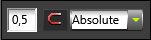
To move, rotate, and scale objects in predefined increments, use the snap tool:
 to toggle on snapping to the grid.
Controlling your application in the Preview